How to Create a Custom Action
In GlobalAI, actions are reusable components that encapsulate specific functionalities or tasks within your workflows. Creating custom actions allows you to tailor the automation capabilities to your specific needs, enabling you to streamline processes and improve efficiency.
Create a Custom Action
To create a custom action in the GlobalAI platform, follow these steps:
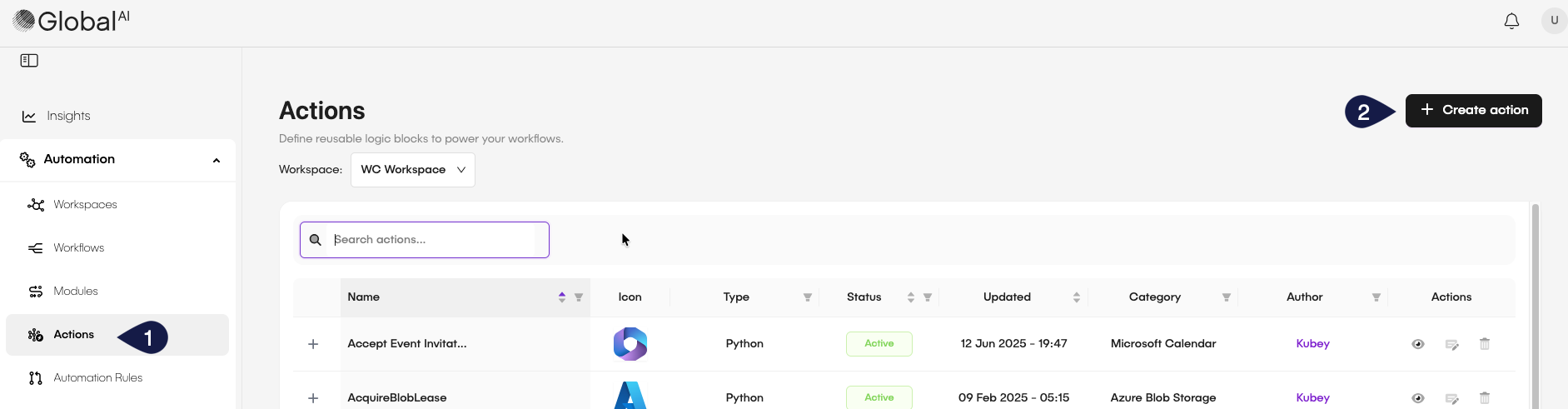
- Access the GlobalAI platform and, on the left sidebar, click on Actions.
- In the Actions page, click on the Create Action button.
- In the Create workflow action form, fill in the required fields:
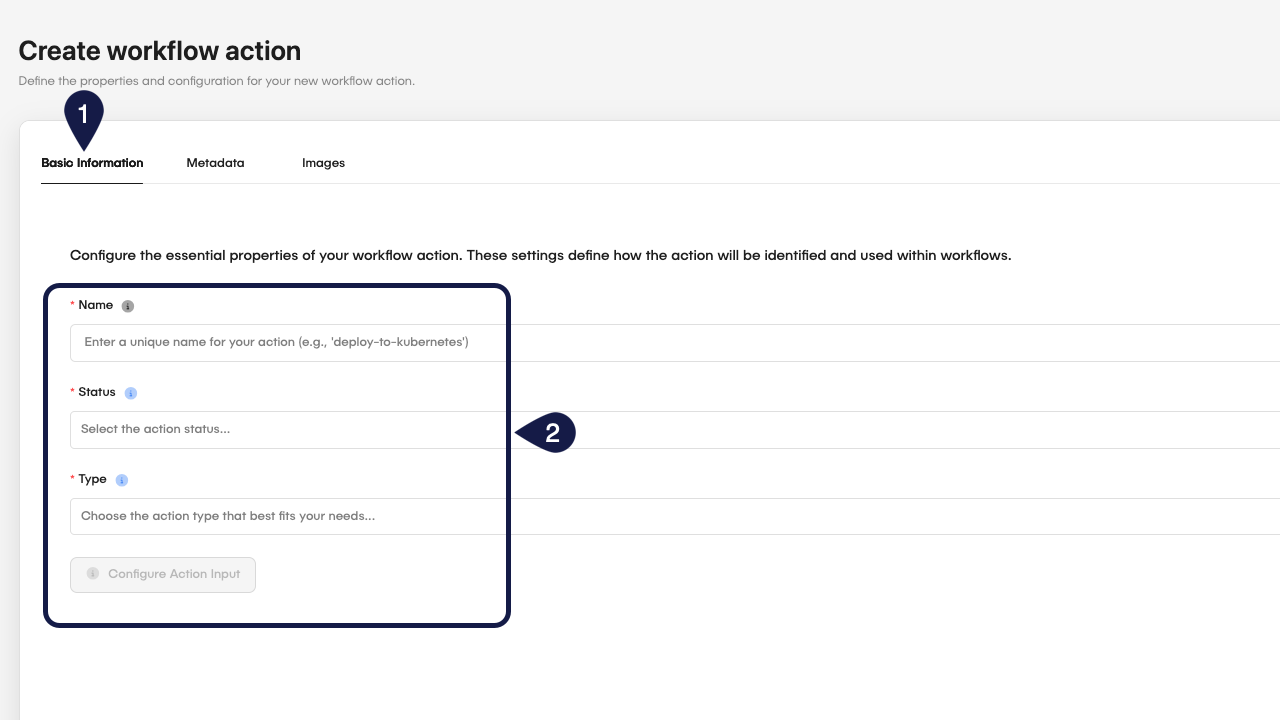
- In the Basic Information tab, provide the following details:
- Name: Provide a unique name for your Action.
- Status: Set the status of the Action to Active, Inactive, or Deprecated.
- Type: Choose the type of Action you want to create (for example, Bash, Python, AgentCall, etc.).
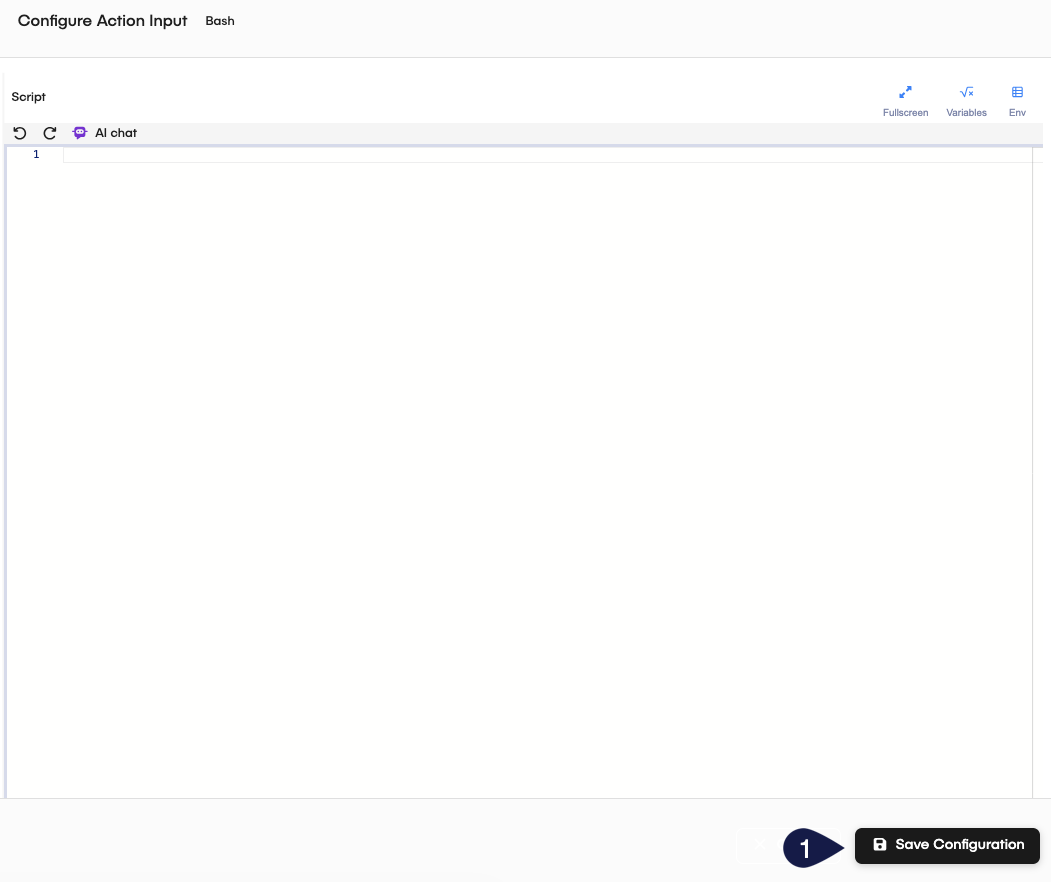
- For every type of action you create, the button below Type will change to reflect the type of action you are creating. For example, if you select Bash as the type, the button will read Configure Bash Input. This allows you to configure the specific parameters, create the code or anything else for that Action type.
- Click Save Configuration when you are done.
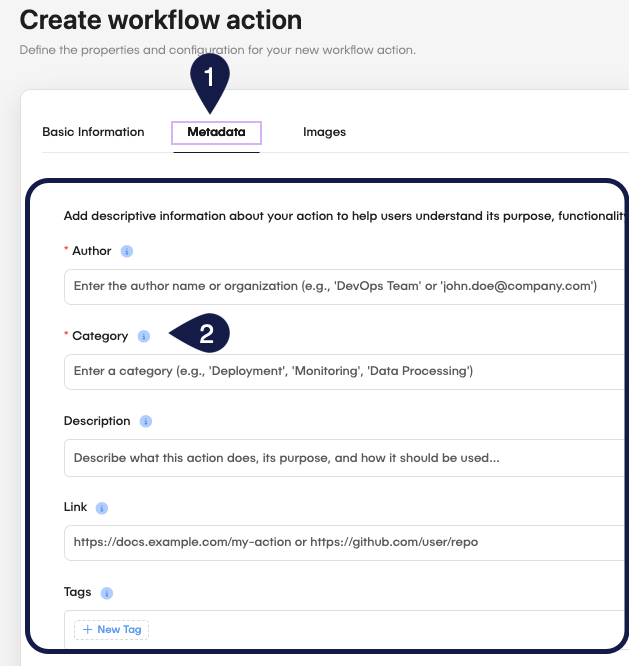
- In the Metadata tab, you can optionally provide additional information about the Action, such as:
- Author: The name of the person or team who created the Action.
- Category: The category under which the Action falls (for example, IT Service Management, CRM, Cloud Services, etc.).
- Description: A brief description of what the Action does.
- Link: A URL to additional documentation or resources related to the Action.
- Tags: Keywords that help in searching and categorizing the Action.
- In the Images tab, you can upload images to represent the Action. This helps users quickly identify it in a list.
- Action icon: Upload a standard image for the action.
- Dark Mode Icon: Upload an image optimized for dark mode.
- Thumbnail: Upload a thumbnail image for the action.
- After filling in all the necessary information, click on the Create button.
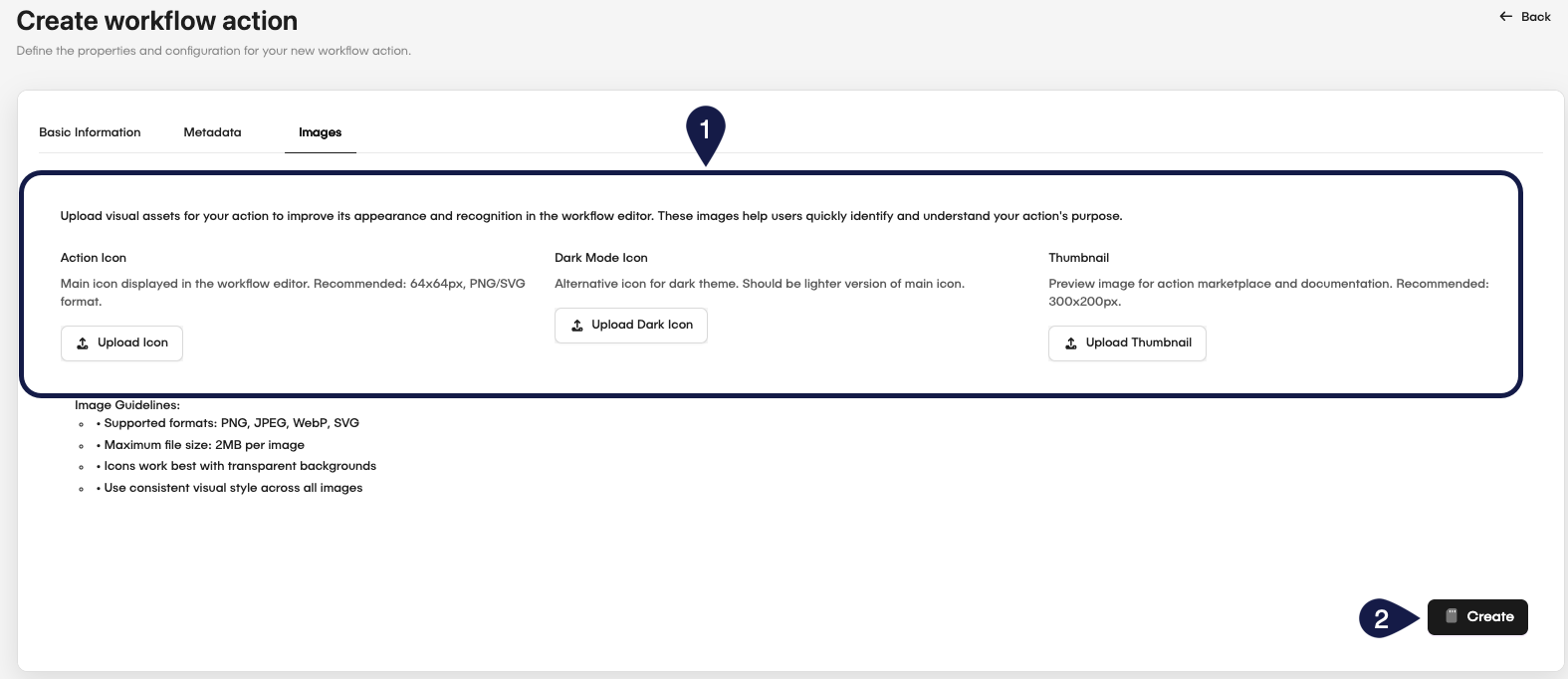
Image requirements
When uploading images for your custom Action, ensure they meet the following requirements:
- The images must be in PNG, JPEG, WebP, or SVG format, have a maximum size of 2MB, a transparent background (icons work best with transparent backgrounds).
- Remember to use consistent visual styles for better recognition.
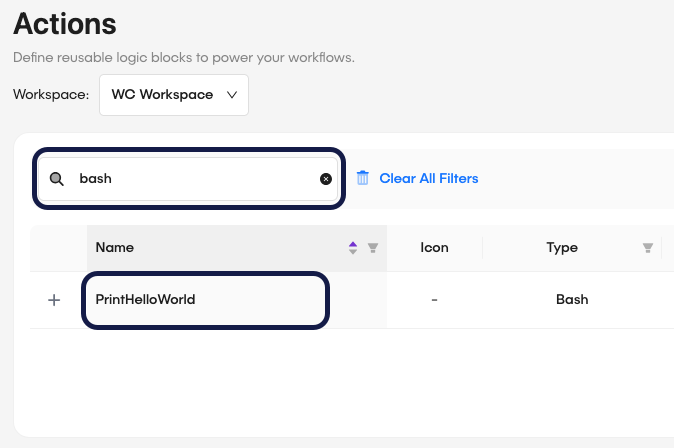
Once created, your custom Action will be available in the Actions list and can be used in workflows just like pre-built actions.
Related articles
Now that you know how to create custom actions, you can explore more about workflow construction and management in the GlobalAI platform.